This article outlines how you can submit data to TN Data Collection by uploading a file to tnrxreport.com.
Upload a File
- Navigate to https://tnrxreport.com/ and login.
-
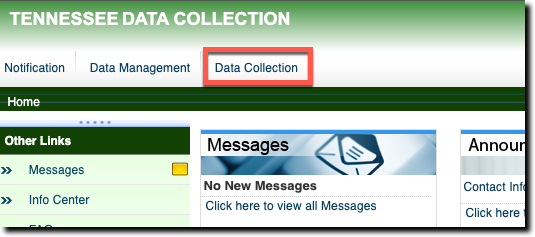
Click on Data Collection.
-
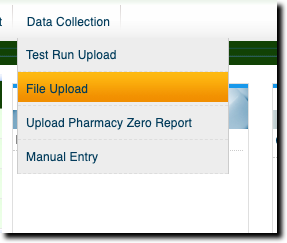
Select File Upload from the drop down.
-
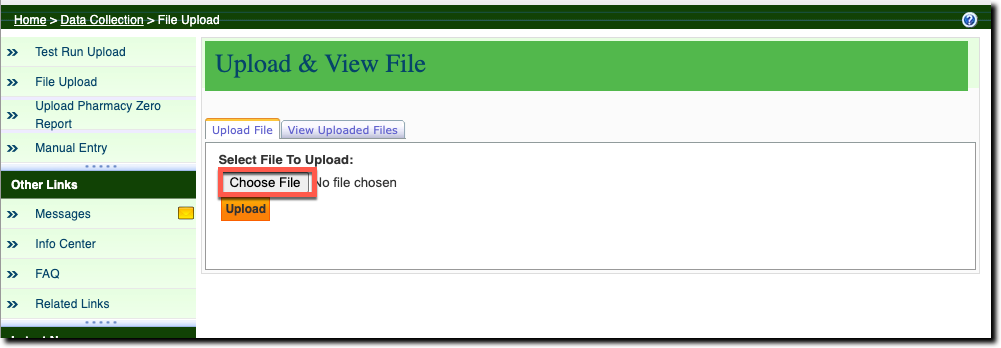
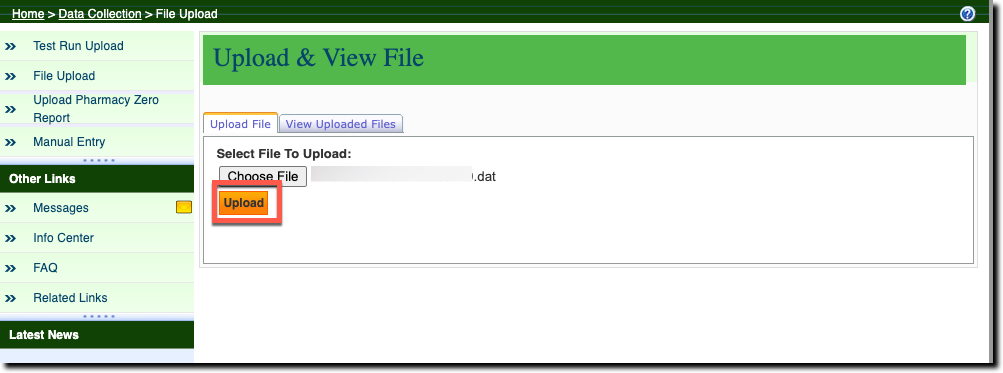
Click Choose File to browse to the location where you file is saved and then select it for upload.
-
Click the orange Upload button.
-
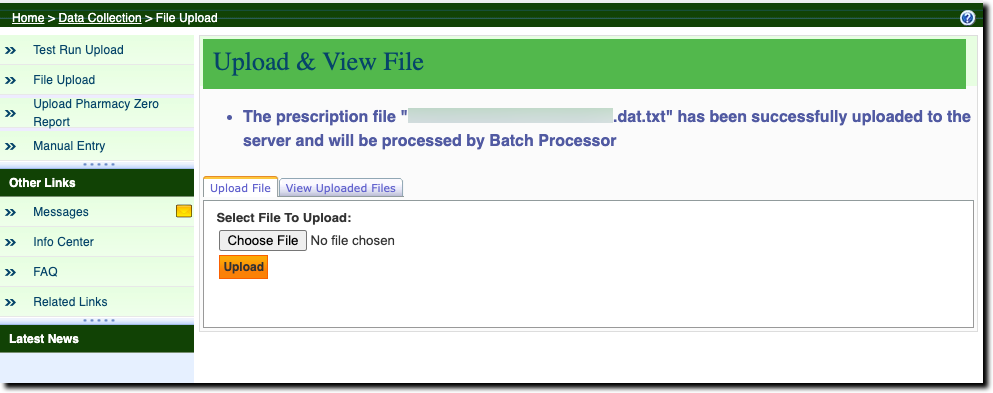
A message will appear on screen indicating that your upload was successful and that it will be processed by a batch processor. Batches are processed nightly and you will receive a File Status Report to the email address associated with your TN Data Collection account.
-
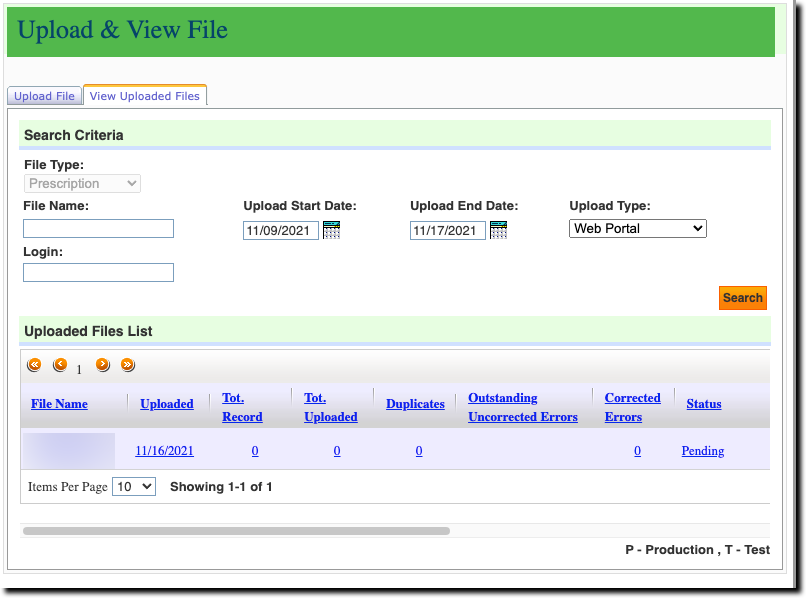
To view your uploaded files click on View Uploaded Files. This screen will display a list of your uploaded files and search options.
All files that have not been processed yet will show a Pending status. The status will change to Processed once the nightly batch process has completed.
-
Clicking on any of the blue text in the same row of a file will direct you to the File Upload Details screen. This screen will display various details about your file, and also list the details of any errors that exist within.
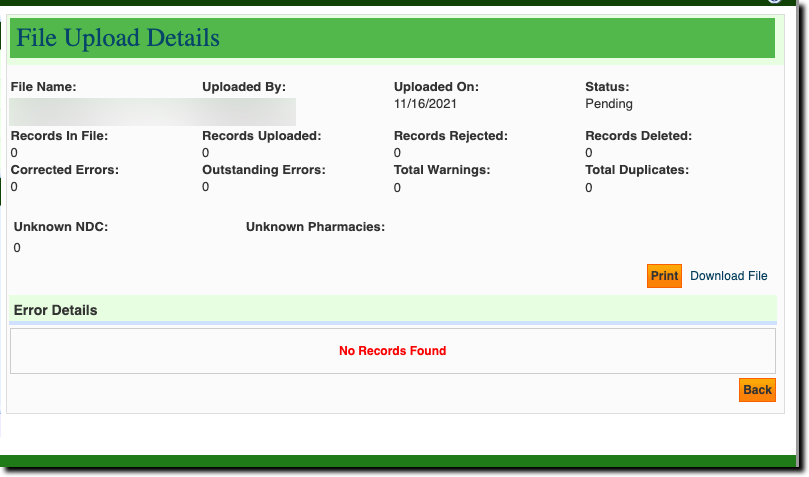
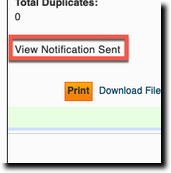
Once the file has been processed, and the Status reads as Processed, the text View Notification Sent will appear above the orange Print button. Clicking on this text will allow you to view the contents of the File Status Report that was sent when the file was processed.